
How-To Guides — Practice With Speakfect
Step-by-step guides — with real app screenshots — for prepping an interview, a best man speech, a company townhall, and overcoming fear of public speaking.
Published
Jump to a guide
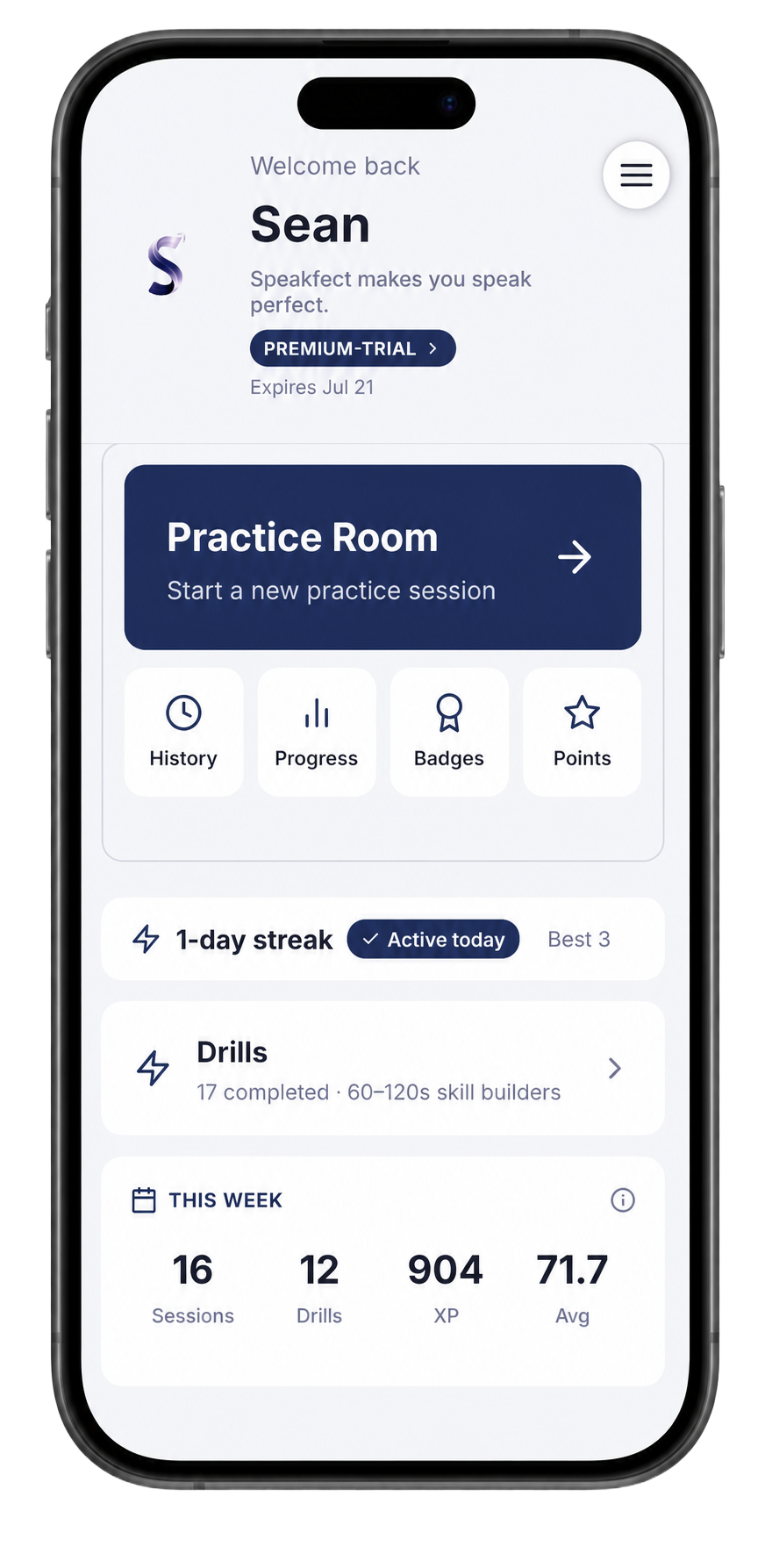
Every guide in this hub walks through one real situation — an interview, a speech, a townhall, speaking anxiety — using actual screens from the Speakfect app, not mockups. You'll see exactly what to fill in, which coach persona to pick, and where the practice loop starts, so you're not guessing when you open the app for the first time.
Download on the App Store → Get it on Google Play →
Why a "how-to" instead of just a features list
Speakfect has a lot in it — Simulated Interview, Scenario Role-Play, Mock Q&A, Drills, coach personas, goal plans. That's great once you know what you're prepping for, and a little overwhelming on your first open. Each guide below picks one real scenario and gives you the shortest path through the app to a useful first practice session: which screen to start on, which settings actually matter for that scenario, and which coach voice to pick.
The five screens you'll see in almost every guide
- Edit Profile — your name, country, and age group. Speakfect uses this to calibrate feedback (a pace that's fast for a teenager reads differently than fast for a 45-year-old executive).
- Goal Plan — a one-line goal in your own words ("Nail my EM interview at a Series B startup"). The app breaks it into an action plan and starts tailoring drills to it.
- Coaching Preferences — pick a default persona: The Ally (supportive, confidence-building), The Mentor (balanced, growth-focused), or The Critic (high-stakes, tough love). You can override per-session.
- A setup screen — Simulated Interview setup, Scenario Role-Play, or Mock Q&A setup, depending on what you're prepping for. This is where the AI learns what to ask you.
- Drills — once you've set a goal, this tab fills with 60–120 second reps tailored to it, for the days between full sessions.
Once those five screens feel familiar, every scenario in the app works the same way underneath.
Pick your scenario
Jump into the guide that matches what you're actually prepping for. Each one is a full walkthrough with real screenshots, not a generic overview.
What you get on the free tier
- 3 practice sessions per month, up to 3 min each
- Full coaching feedback on every session
- Ally & Mentor coaching voices
Premium ($2.49/wk, $9.99/mo, or $59.99/yr — 7-day free trial on annual) unlocks unlimited sessions, longer recordings, all three coaching voices, Mock Q&A with live follow-up questions, and Ask the Coach chat.
Start free — Download Speakfect →
Frequently asked
Do I need to pick a scenario before I explore the app? No — Drills and the Practice Room are open from your first login. But setting a goal first (Goal Plan screen) makes everything else — drills, coach tone, follow-up questions — tailored to your actual situation instead of generic.
Which coach should I start with if I'm not sure? The Mentor. It's the app's default and the most balanced for a first session. Switch to The Ally if you want gentler feedback, or The Critic once you want to be pushed.
Can I change my goal later? Yes, any time from the Goal Plan screen. Drills and follow-up questions re-tailor to the new goal within a session or two.